
Hello friend🙋🙋 ,
My name is Anoop sharma and Today i made a blog on how to instal kali lunix on your system using virtual machine.
Before starting let’s know a little bit about kali lunix . If we talk in simple terms kali is just like other operating systems but it is commonly used by professionals to do penetration testing and other works it was developed in 13 March 2013 by a developing team Offensive Security . Thats enough till now we will talk about this in further blog in depth , so let’s get started .
Virtual machines are free of cost and you can get some of them from their official website name’s of some comman virtual machines are , VMware Workstation, VMware Fusion, Hyper-V, Windows Virtual PC, Xen, VirtualBox and Parallels Workstation etc .
STEP :1
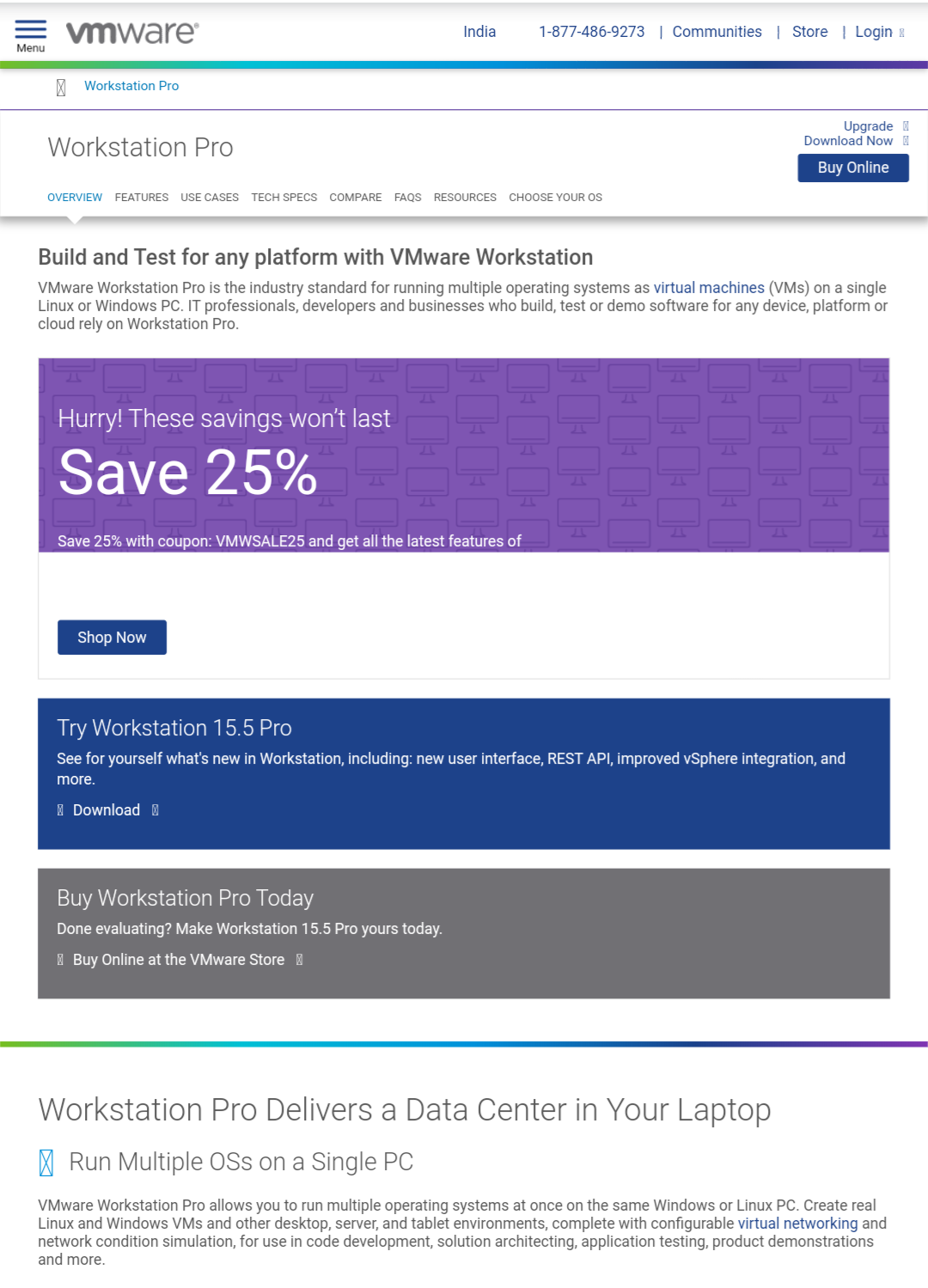
To install a virtual machine you can directly download it from http://www.vmware.com
STEP :2
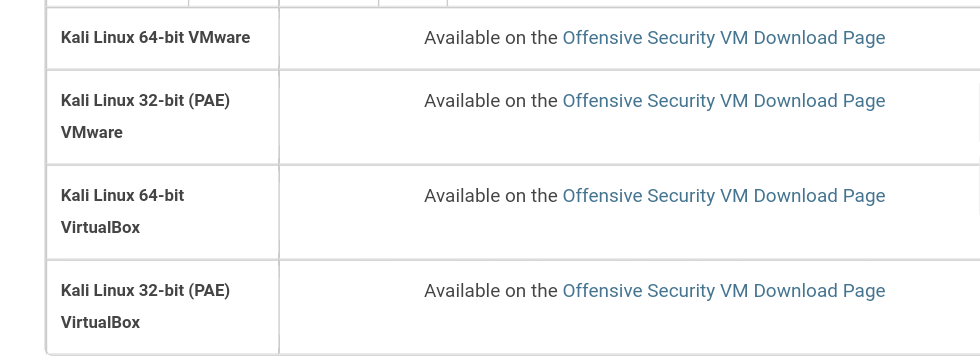
After installation now it is time to run VMware virtual machine . But before that let’s download an lunix os file you can get it from http://www.kali.org/download/
STEP: 3
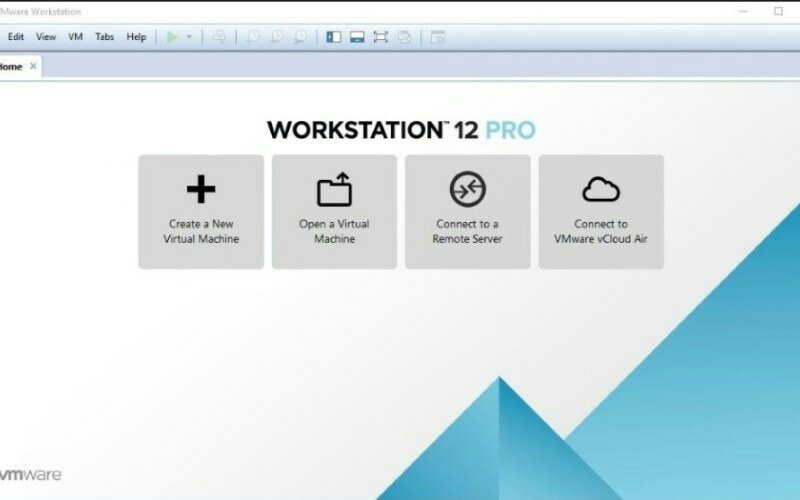
When you open VMware for firt time it will be like ,.
After this you will need to select the ios file of kali lunix
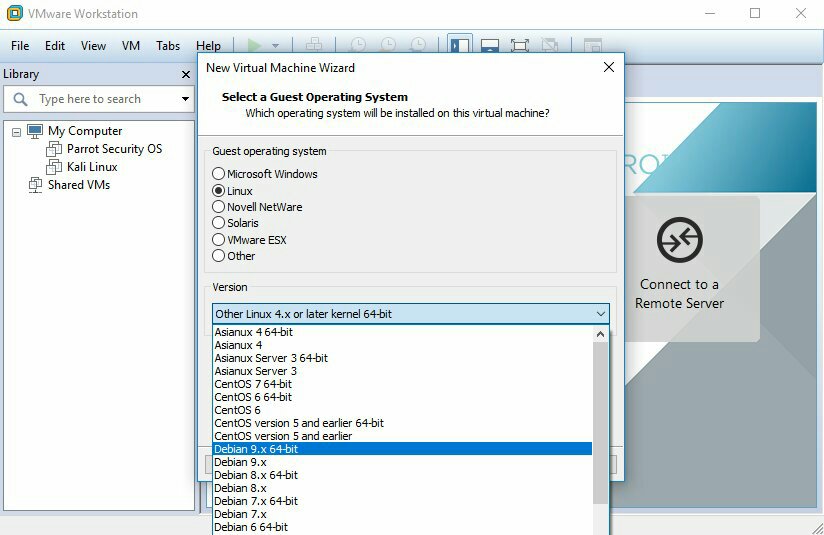
Now select your operating system,.
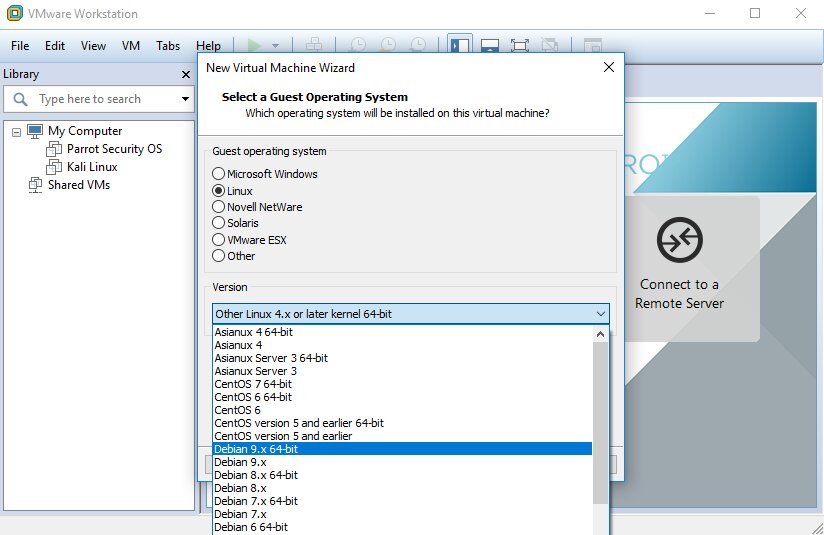
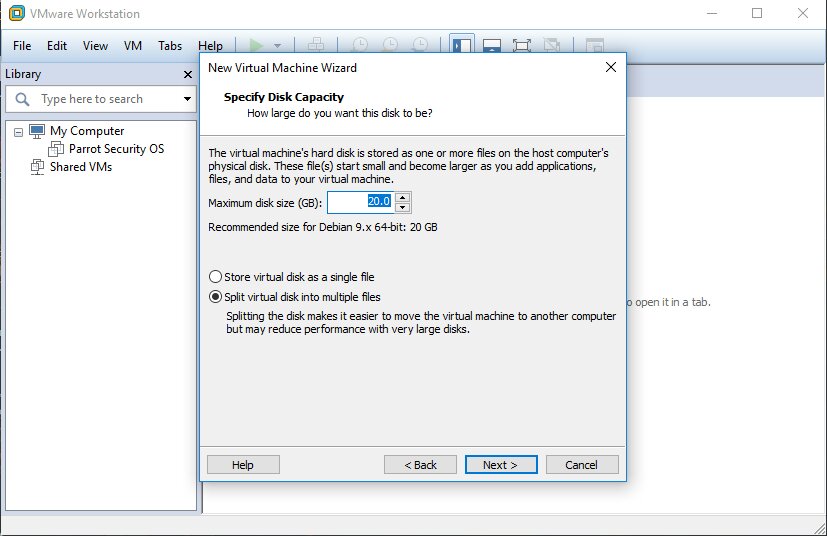
Now the virtual machine will ask for virtual hardware space let’s give it
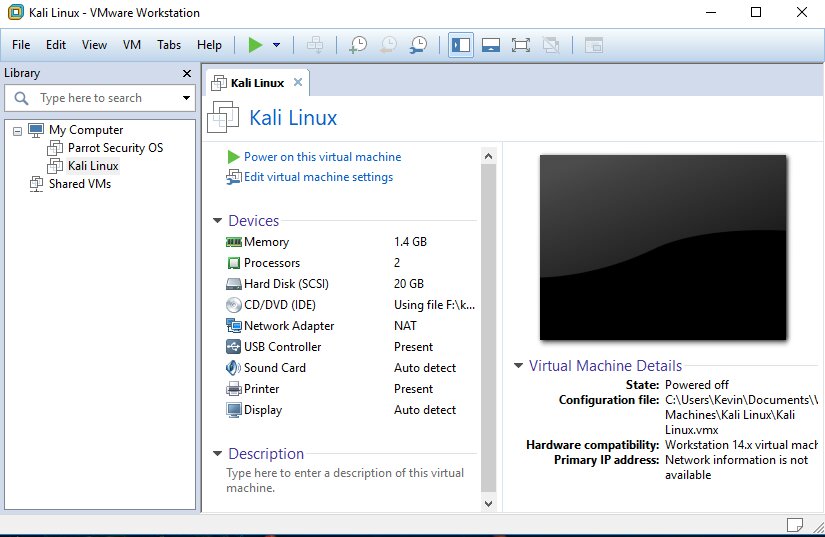
Now it’s time to power on your virtual machine.
STEP:4
The starting of kali lunix
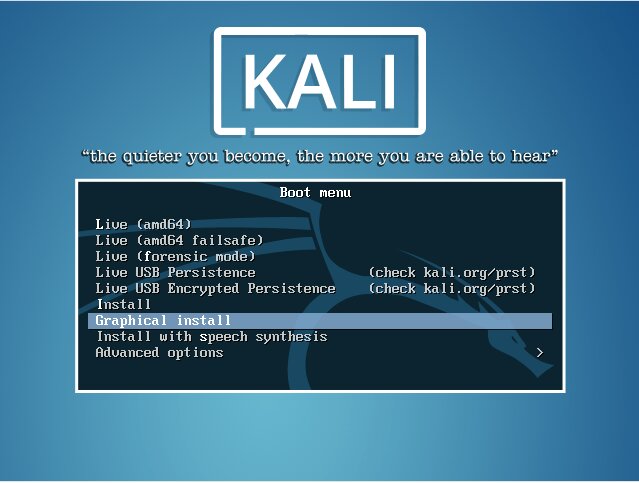
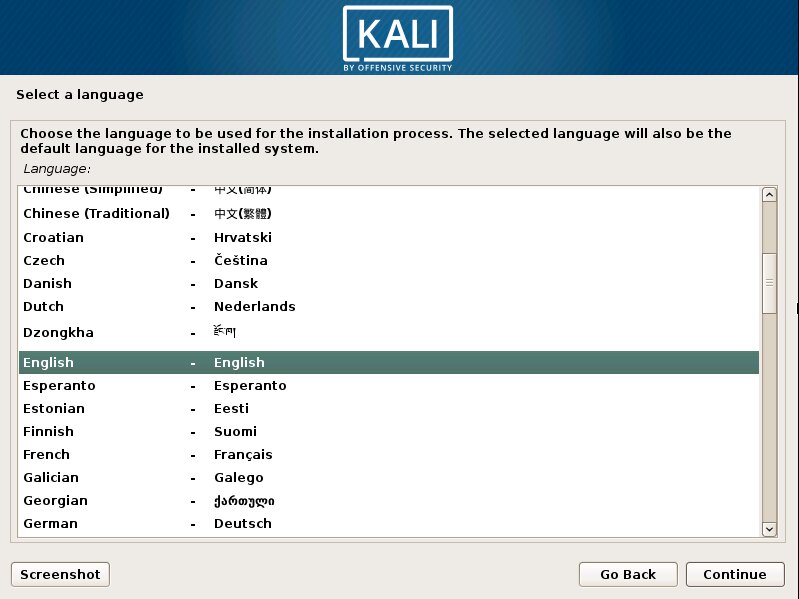
Now select your language and hit enter .
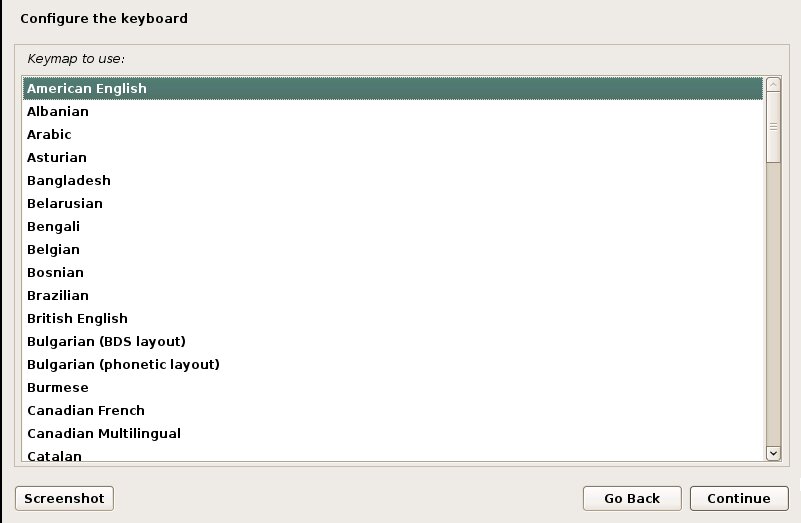
After this it will ask for key map view click on amarican english and continue
Now it will ask for configuring network you have to type Kali and continue . After this it will ask for domain name you can leave it blank or fill it as you wish and press continue .
Now it will ask for root password type toor as your root password and remember root is your username.
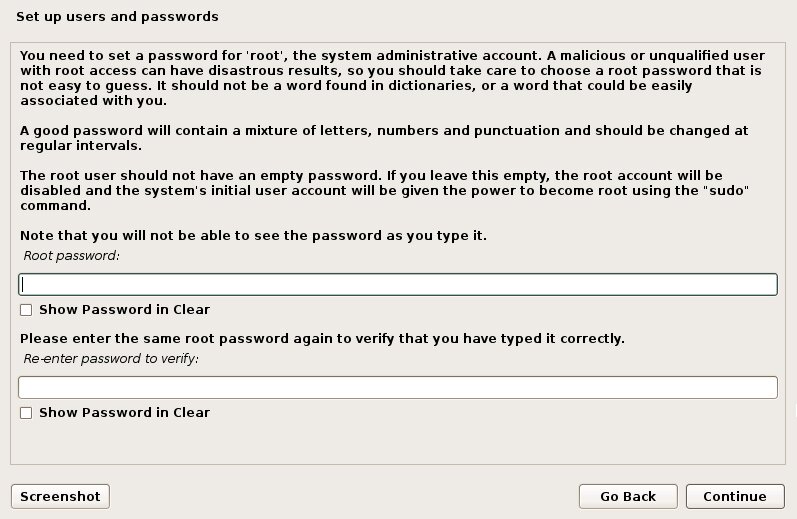
password:toor
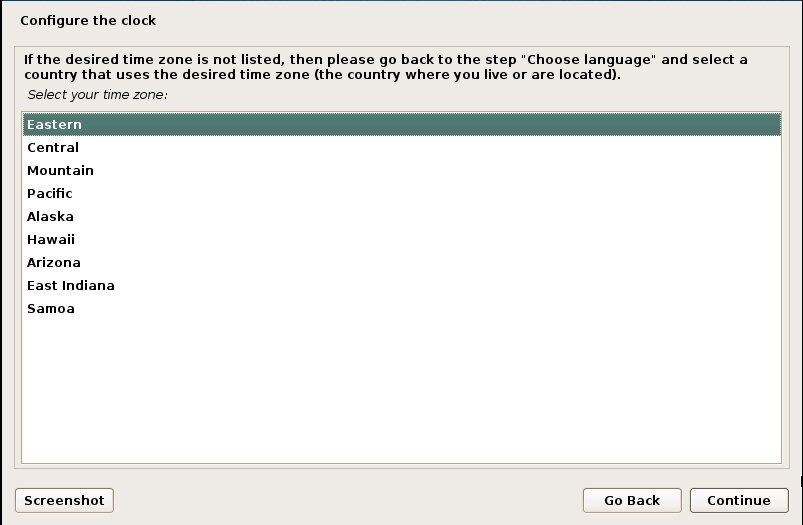
After this it will ask for clock configuration and it will ask you your time zone select your time zone and hit continue.
Now time to select partition
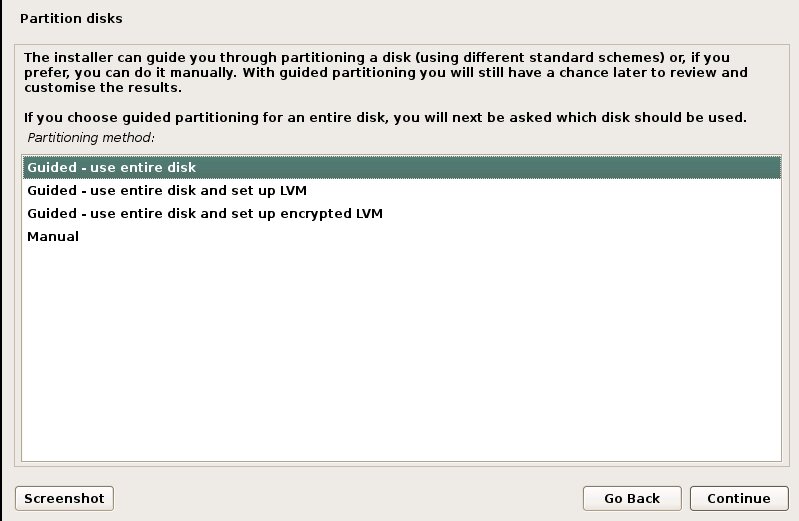
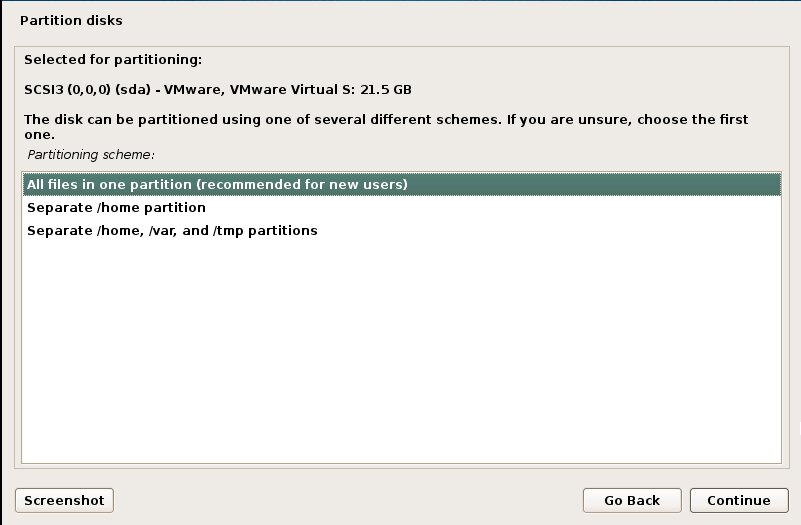
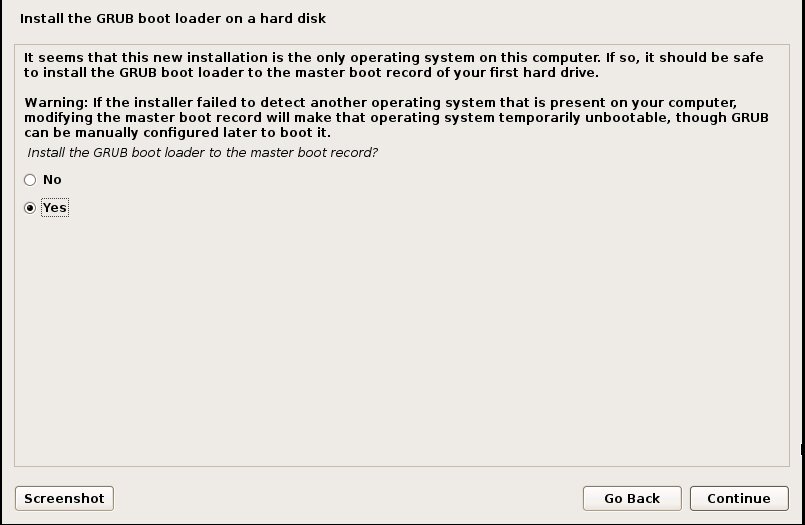
Main option, time to load grub boot loder
Now it’s time to complete installation
STEP: 5
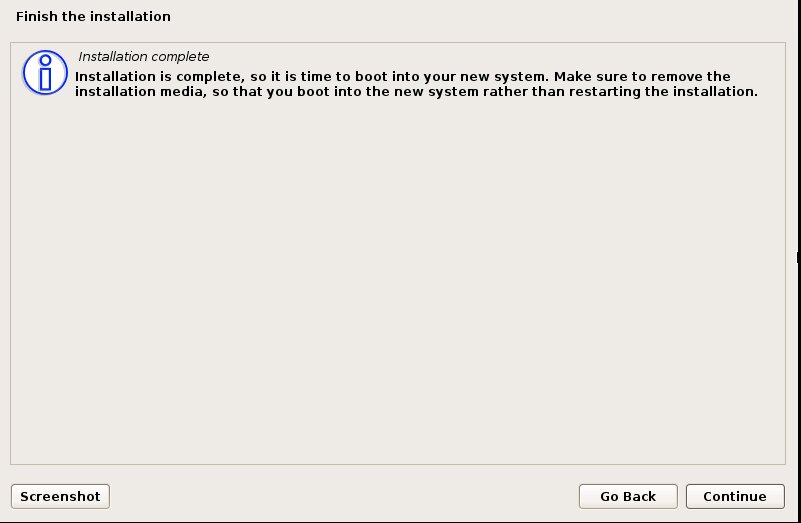
STEP: 6
You are inside kali lunix now 👍

Thank you for reading my blog and please like and follow my blog page for technical and cybersecurity related news and practical tutorials. THANK YOU.
 Site Title